
End employment or access through the right path
WorkCycle365 supports planned offboarding, resignation, contract end, leave, and urgent access removal. The request path determines its timing, approval route, notifications, and follow-up work.
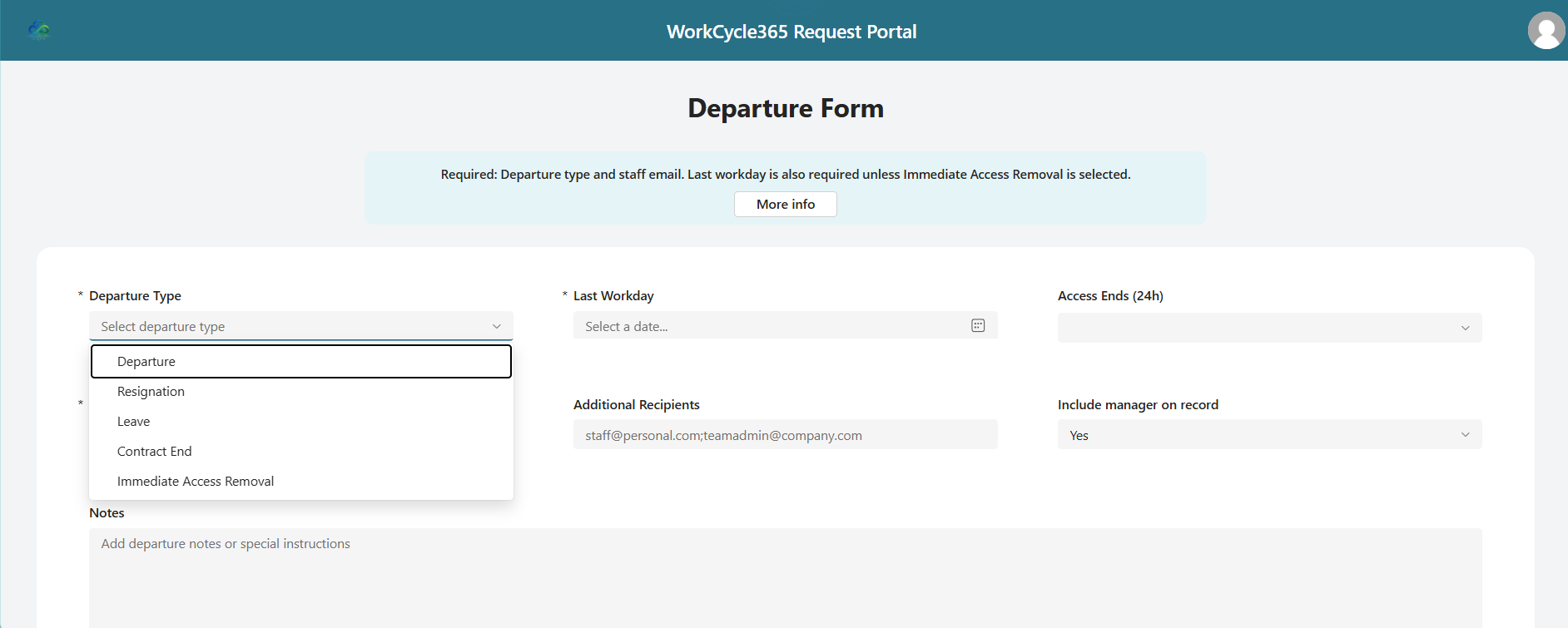
Choose the correct path
Section titled “Choose the correct path”| Path | Use it for | Timing and follow-up |
|---|---|---|
| Departure | A planned offboarding not better described by another available type | If Access Ends (24h) is blank, the form uses the organization’s Business End time. The shared disable process waits for its stored target before account changes. |
| Resignation | A planned employee-initiated departure | Uses the resignation-specific event and communication context. |
| Leave | A temporary absence | Choose Departure, then select Leave. Last Workday is required; Enter the optional Return Date to create a separate future Return request. See the Leave guide. |
| Contract End | A known end of a fixed-term arrangement | Can be set at Hire and changed later with an Extension. |
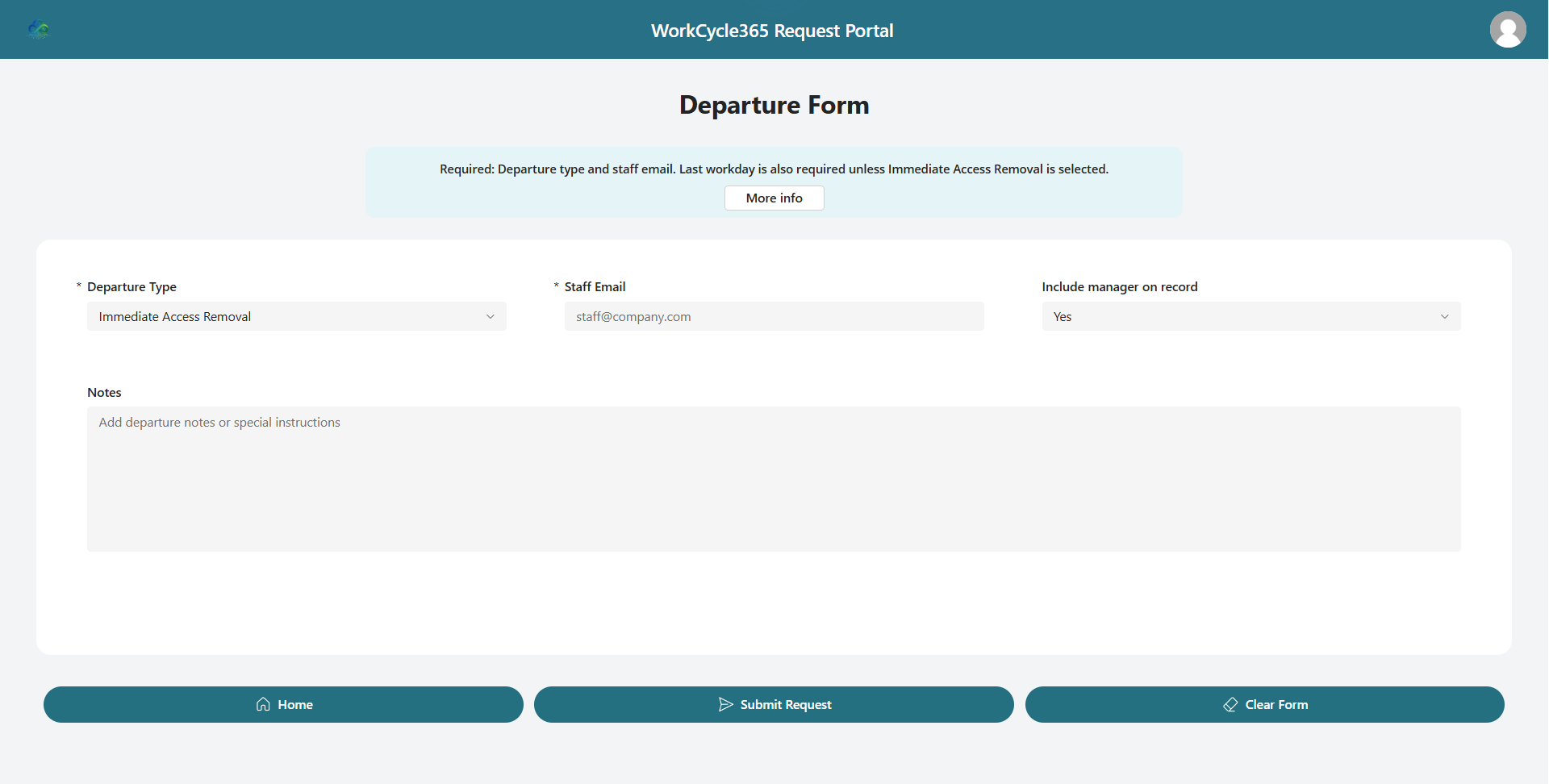
| Immediate Access Removal | An urgent request to remove access | Uses the submission time as its target and waits for affirmative approval before disabling the account. The approval details include a separate administrator task to revoke active Microsoft 365 sessions after the automated account changes. |
The portal collects Leave through the Departure form. WorkCycle365 processes Leave as a distinct path with its own approval and optional Return handling.
Before you begin
Section titled “Before you begin”Confirm the employee’s identity, the correct offboarding type, and the effective date and time shown by the request. Approvers should review the employee, business context, and target before deciding. Avoid submitting a duplicate while a request is awaiting approval or scheduled processing.
Access removal: WorkCycle365 disables the employee’s Microsoft Entra ID account after approval and at the applicable time. When the corresponding groups are configured, WorkCycle365 removes primary license-group membership and adds the account to the disabled-users group. For Immediate Access Removal, session revocation remains a separate administrator action.
Submit the request
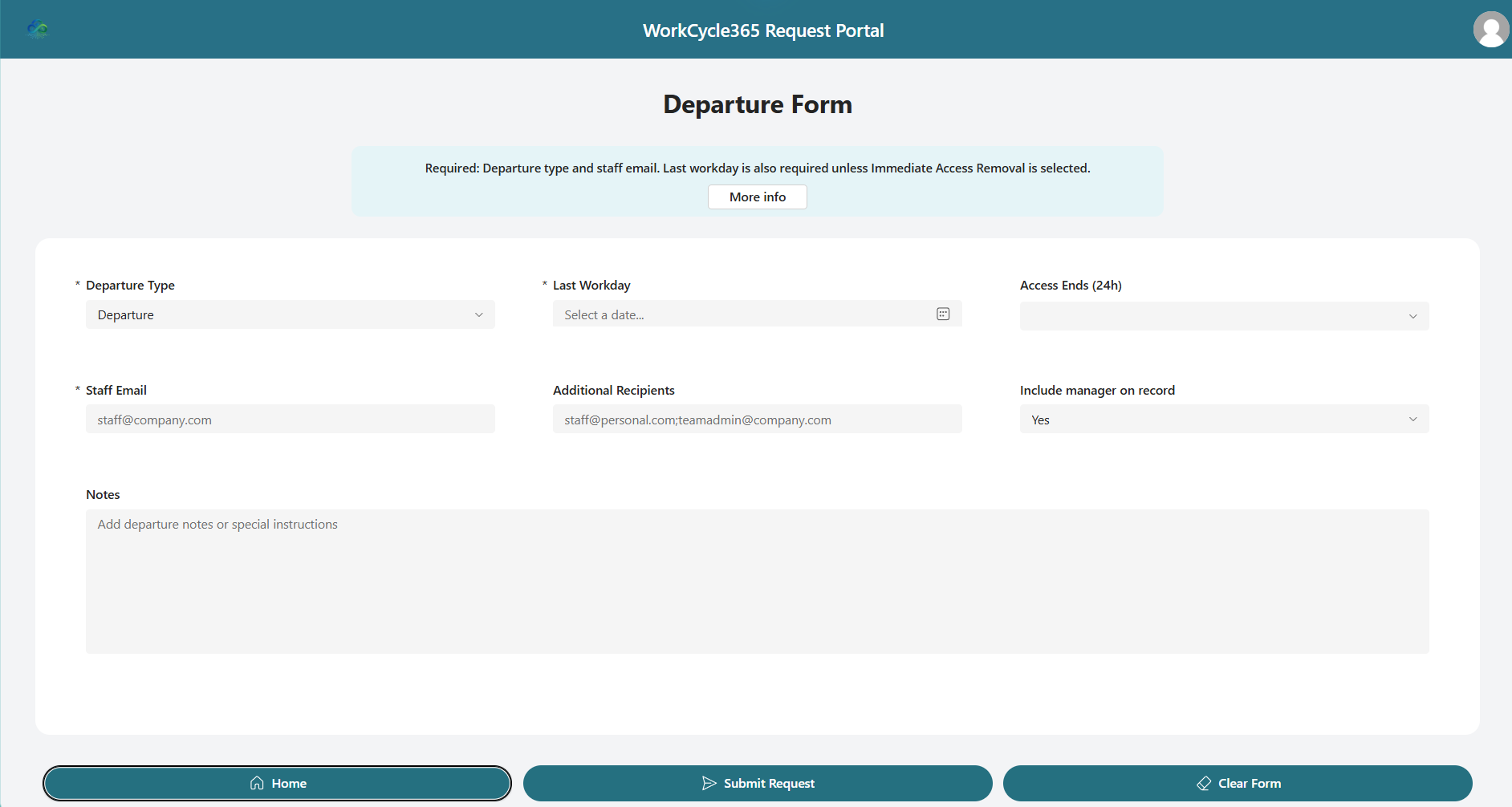
Section titled “Submit the request”- Choose Departure, then select the appropriate subtype shown by the form.
- Identify the existing employee.
- Enter the required fields and review the effective date. For planned Departure, set optional Access Ends (24h) when you want a particular time; leave it blank to use the organization’s Business End Hour. Immediate Access Removal does not require Last Workday and uses the submission time as its target.
- Add the business and security context requested by the form.
- Review the person, path, and timing, then submit once.
For planned Departure, Resignation, Contract End and Leave, a blank time uses Business End Hour in the tenant time zone, or 17:00 when unset. A supplied time takes priority.
If that start has passed or is no more than ten minutes away when the event is created, it moves to ten minutes after creation. For example, a planned Departure for today using the 17:00 default has an 18:10 start if its event is created at 18:00. Access removal requires approval and follows the adjusted schedule.
Immediate Access Removal uses the urgent approval path below. See timing and scheduling for tenant time-zone and schedule guidance.
What happens next
Section titled “What happens next”Planned Departure waits for its approval and scheduled cutoff before the account is disabled. Review the approval before the scheduled cutoff. Access removal proceeds only after an approved decision.
Immediate Access Removal uses an urgent approval path with the submission time as its target. A delayed decision delays the automated account change. After that change, an authorized administrator must revoke active Microsoft 365 sessions separately. Follow your organization’s urgent support procedure to arrange that manual work.
When configured, access removal also removes the employee from the primary license group and adds them to the disabled-users group. Report any access or licence error to your administrator so they can review the existing request.
Cards, email and calendar communications follow the selected offboarding path and your organization’s settings. A scheduled event describes the intended time; it is not an approval decision.
Rejection, modification, and cancellation
Section titled “Rejection, modification, and cancellation”Use Modify or Cancel while the request is eligible if the person, timing or plan needs to change. Rejection or cancellation stops later work, including a stale approval response, but does not undo account changes already made.
Report an outdated card, calendar event or incorrect access outcome to your administrator before submitting a replacement. Review related follow-up requests separately.
Completed, failed or otherwise ineligible requests cannot be replayed through Modify. Never change a stored status to revive a request. An administrator must review a failed or interrupted request before arranging further access-removal work.
If offboarding needs attention
Section titled “If offboarding needs attention”Use your urgent support procedure if access remains available when it should have ended or an Immediate Access Removal cannot proceed. Include the employee, selected path, intended cutoff, approval decision and request number if available. Make clear whether active-session revocation has been arranged or completed.
For a request error, missing approval, misleading event or communication problem, contact your administrator with the same request details. Keep the existing request while your administrator checks completed actions and arranges recovery.
Related: Timing and scheduling · Approvals and notifications · Extension