
Change an employee's upcoming contract end
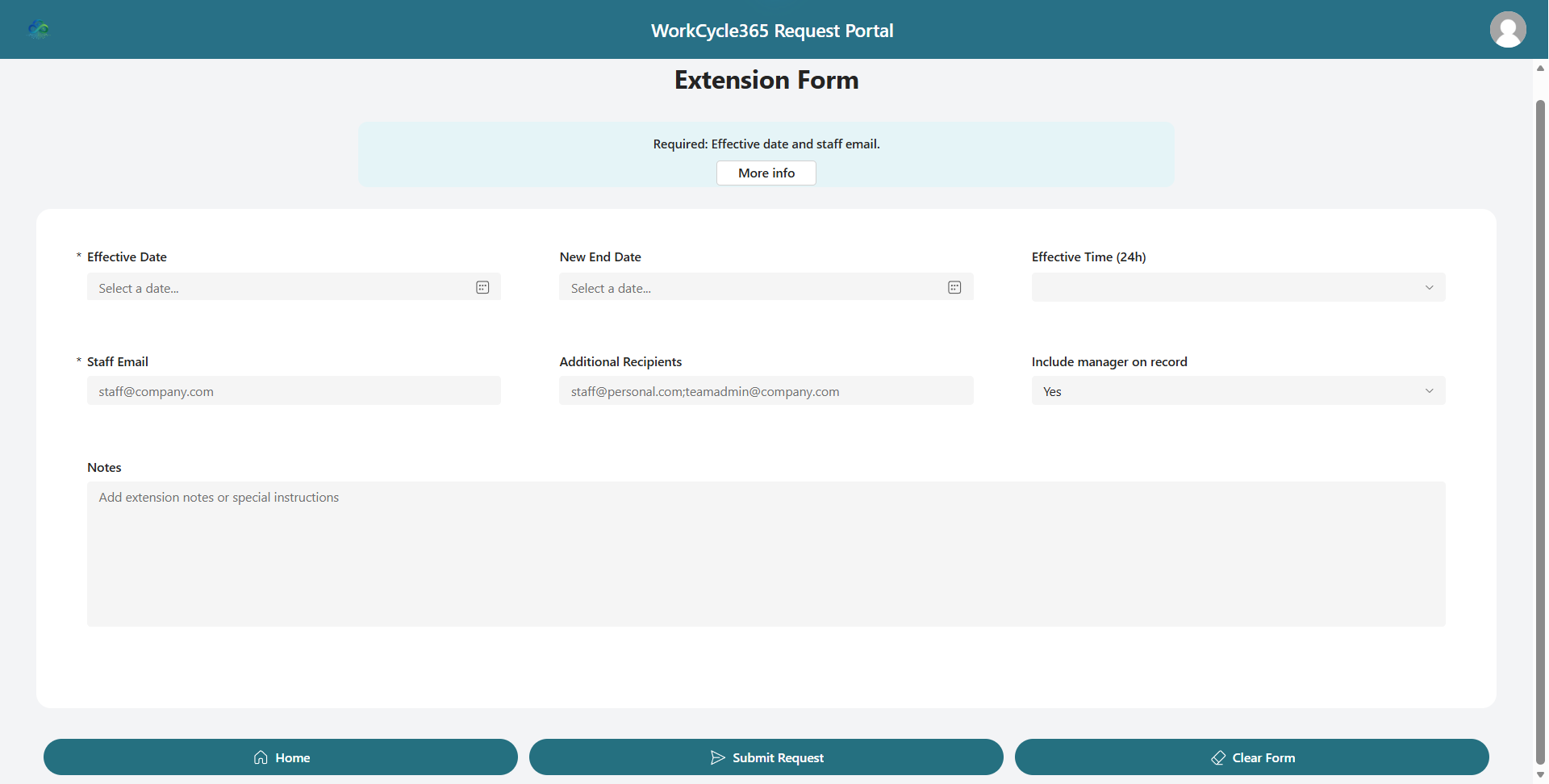
Use Extension to change an employee’s upcoming contract end. WorkCycle365 creates a separate Extension request and processes it immediately. It does not require approval, and its effective date and time do not delay the change.
Before you begin
Section titled “Before you begin”- Use the employee’s current company address in Staff Email.
- Set the required Effective Date. It identifies the Extension and its calendar event; it is not a scheduled processing time.
- Decide whether a replacement contract end is known. New End Date is optional. Leave it blank when no replacement Contract End is required.
- If you know that more than one upcoming Departure or Contract End is active for the employee, ask an administrator to review the request history before you submit. Each Extension handles one eligible upcoming request.
- The tenant time zone must be configured in Tenant Settings.
Submit the Extension
Section titled “Submit the Extension”- Choose Extension in the request portal.
- Enter the employee’s current company address in Staff Email and complete the required Effective Date.
- Optionally set Effective Time (24h) when you want a particular calendar time; leave it blank to use 90 minutes before Business End Hour. This controls the Extension calendar event, not when WorkCycle365 processes the change.
- Enter New End Date when the replacement contract end is known. This date field has no separate time selector. The scheduled Contract End’s time is handled by its configured schedule; see timing and scheduling.
- Add any required notes, then submit once.
With Effective Time (24h) blank and Business End Hour 17:00 (the fallback when unset), the Extension calendar start is 15:30 in the tenant time zone. A supplied time takes priority.
If that start has passed or is no more than ten minutes away when the event is created, it moves to ten minutes after creation. For example, an Extension for today using the 15:30 default has a 16:10 event start if the event is created at 16:00. Extension processing starts immediately; this calendar adjustment does not delay it.
The confirmation says Request submitted. The form clears and returns home without displaying a request reference. Do not submit again just to obtain one; if you later need help, give the employee name and submission time.
What happens next
Section titled “What happens next”- WorkCycle365 looks for one eligible upcoming Departure for the employee. One Extension does not cancel every future Departure or Contract End.
- For a matching request, WorkCycle365 sends the cancellation and removes its calendar event. If the earlier request is already processing, contact your administrator to review it.
- A supplied New End Date starts the replacement Contract End request and event. A blank date skips that replacement. The Extension event and optional replacement also proceed when there is no matching earlier Departure.
- WorkCycle365 updates the Extension’s status and sends its email and Teams card according to your organization’s settings.
If cancellation or replacement reports an error, ask your administrator to check the earlier Departure and replacement Contract End before submitting again.
A completed Extension is not revised through Modify. A later Extension leaves the earlier completed request and its notification unchanged.
Unusual cases and recovery
Section titled “Unusual cases and recovery”- If the employee has multiple active future Departure or Contract End requests, contact your administrator before proceeding. One Extension handles only one eligible match.
- If the prior request is already processing, cancellation reports a problem, or the old event remains active, do not submit another Extension. Give your administrator the employee, the old and intended end dates, and the message shown so they can resolve the existing work.
- If the portal says Request submit failed or the connection times out, ask an administrator to check whether an Extension request was created before trying again.
- If an Extension is completed and only its end date needs to change, submit another Extension. For a failed or interrupted Extension, contact your administrator before resubmitting.
- If the portal reports that the tenant time zone is missing, stop and ask an administrator to configure Tenant Settings before trying again.
Related: Timing and scheduling · Departure and Immediate Access Removal · Follow your request