
Coordinate an employee transfer at the right time
Use Transfer to change an employee’s manager or organizational assignment. WorkCycle365 coordinates approval, scheduled changes and the configured communications.
Before you begin
Section titled “Before you begin”Confirm:
- the existing employee identity;
- the new manager or organizational assignment;
- the transfer’s effective date and time;
- whether the assignment is temporary;
- the end date for a temporary assignment, when applicable;
- the business context an approver needs.
Submit the Transfer
Section titled “Submit the Transfer”- Choose Transfer in the request portal.
- Select or identify the existing employee.
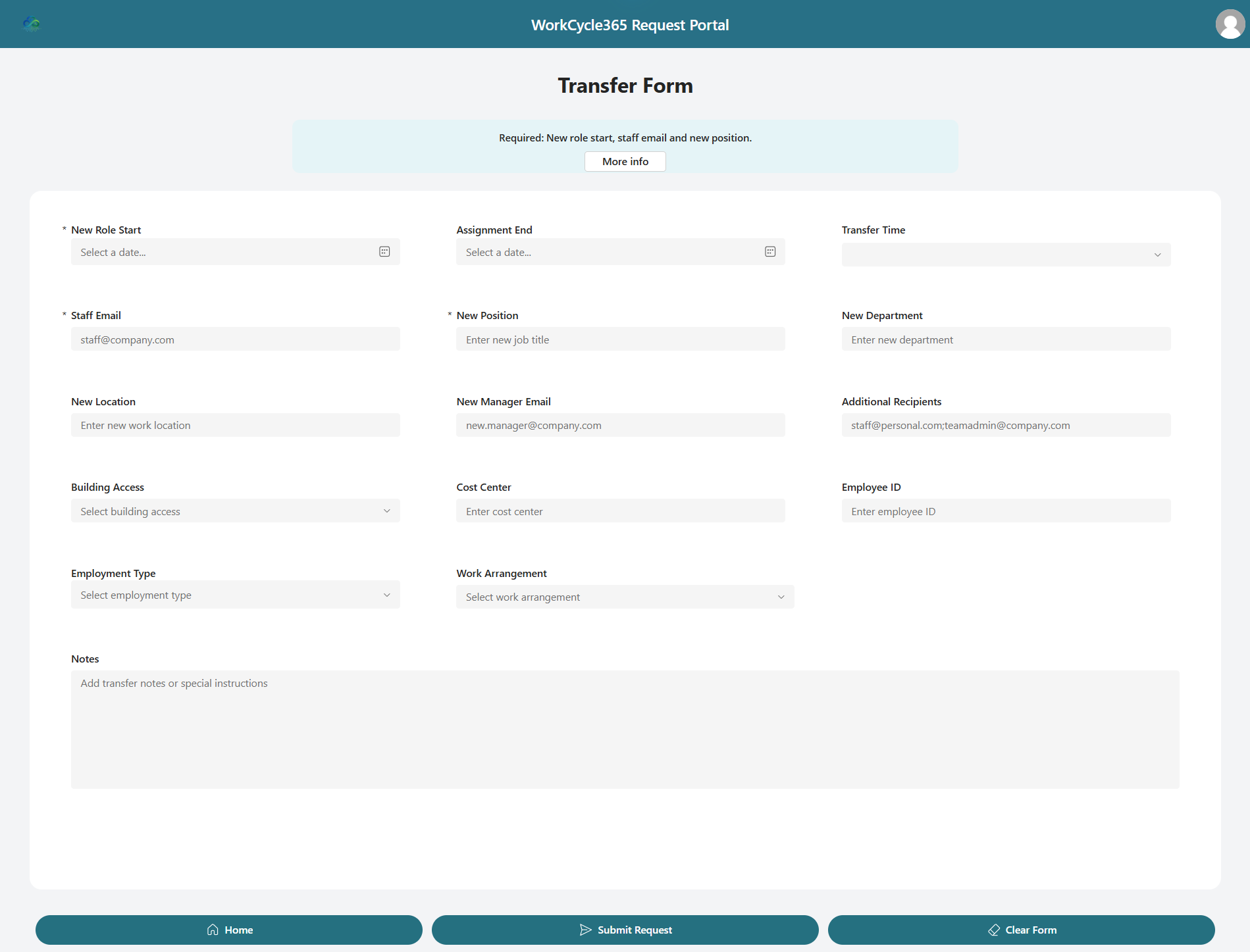
- Enter the new manager or organizational details shown by the form.
- Enter the effective date. Set the optional Transfer Time when you want a particular time; otherwise leave it blank to use the business-hour default below.
- Add an Assignment End date when a follow-up is required. Select Temporary Assignment only when the assignment should later revert; an end date without that selection follows the Contract End path.
- Review the before-and-after context, then submit once.
When Transfer Time is blank, the Transfer calendar event starts 90 minutes before the tenant’s Business Start Hour, in the tenant time zone. With Business Start Hour 09:00 (the fallback when unset), that is 07:30. A time you supply takes priority.
If that start has passed or is no more than ten minutes away when the event is created, it moves to ten minutes after creation. For example, a Transfer for today with the time blank and an event created at 11:00 starts at 11:10, rather than 07:30. The adjustment sets the event time; the transfer also requires approval.
See timing and scheduling for the shared timing rules. Assignment End sets the follow-up schedule described below.
What happens next
Section titled “What happens next”- WorkCycle365 sends the Transfer to its configured approver. Review its approval before the scheduled transfer.
- After approval, the transfer waits until its scheduled time. Before the account update, WorkCycle365 checks for changes and cancellation.
- WorkCycle365 updates the requested directory details, including the manager when their account is found. Transfer processing also enables the employee’s account.
- When configured, it adds the employee to the primary license group if needed and removes them from the disabled-users group if they are a member. The tenant’s licensing policy determines the effect of those group changes.
- Transfer email, Teams cards and calendar communications follow the request and your organization’s settings.
Temporary assignments and contract ends
Section titled “Temporary assignments and contract ends”Assignment End selects one follow-up:
- With Temporary Assignment selected, WorkCycle365 creates a separate Transfer Revert request and event. Its destination uses the manager, department, position and location recorded before the original transfer.
- With Temporary Assignment off, the end date creates a Contract End request and event for planned Departure.
- With Assignment End blank, neither follow-up is created.
Review the follow-up’s separate approval when it is issued. Approval of the original Transfer does not approve the follow-up. Before approving a Transfer Revert, compare its destination with the intended previous assignment.
A Transfer Revert uses Business End Hour on the Assignment End date (17:00 in the tenant time zone when unset), not the original Transfer Time. If that start is due or no more than ten minutes away when its event is created, it moves to ten minutes after creation.
The manager is restored when the previous manager account is found. If the recorded manager is blank or unavailable, WorkCycle365 leaves the current manager in place rather than clearing it. If that would be unsuitable, arrange the correct manager before approving the reversion.
Include Manager controls communications, not approver selection. When enabled, Transfer and Transfer Revert calendar invitations include both relevant managers when their accounts are found. The employee email copies only that request’s New Manager; the other manager is not substituted if New Manager is unavailable. Revert keeps the original Include Manager choice. Other configured recipients are handled separately.
Account-state consequence: Transfer processing enables the account. Confirm that this is appropriate for the employee before approving.
Approval and cancellation
Section titled “Approval and cancellation”Rejection stops the Transfer from continuing with its account or access changes. While the request remains eligible, use its Modify or Cancel action instead of submitting a competing request. Modify keeps the request reference and its card/event while creating a revised approval.
Cancellation does not undo changes already made. Completed, failed or otherwise ineligible requests cannot be replayed through Modify. Contact your administrator after a failed or interrupted transfer before submitting a replacement.
If the Transfer needs attention
Section titled “If the Transfer needs attention”Contact your administrator if the request reports an error, an expected approval is missing, or the assignment, account access or communications are wrong after the expected transfer time. Include the employee, submission time, effective date and request number if shown.
If a temporary assignment or contract end also needs to change, include that follow-up in the request for help. The original Transfer and its follow-up must be reviewed separately when plans change.
Keep the existing Transfer when reporting a delay or failure. Your administrator checks completed actions before arranging a correction.
Related: Timing and scheduling · Approvals and notifications · Follow your request