
Submit a lifecycle request with confidence
Use the WorkCycle365 portal to tell your organization who needs a lifecycle change and when it should happen.
Before you begin
Section titled “Before you begin”Confirm that you have:
- access to the WorkCycle365 request portal;
- the correct employee or new-hire identity details;
- the lifecycle type you intend to request;
- the effective date and, when requested, the effective time;
- manager, organizational, and contract information relevant to the change;
- any notes an approver or administrator will need to understand the request.
Timing matters: Enter the date for the selected lifecycle. Its optional time field lets you request a particular time; leave it blank to use the applicable business-hour default. See timing and scheduling for the defaults and a same-day example.
Submit the request
Section titled “Submit the request”- Open the WorkCycle365 request portal supplied by your administrator.
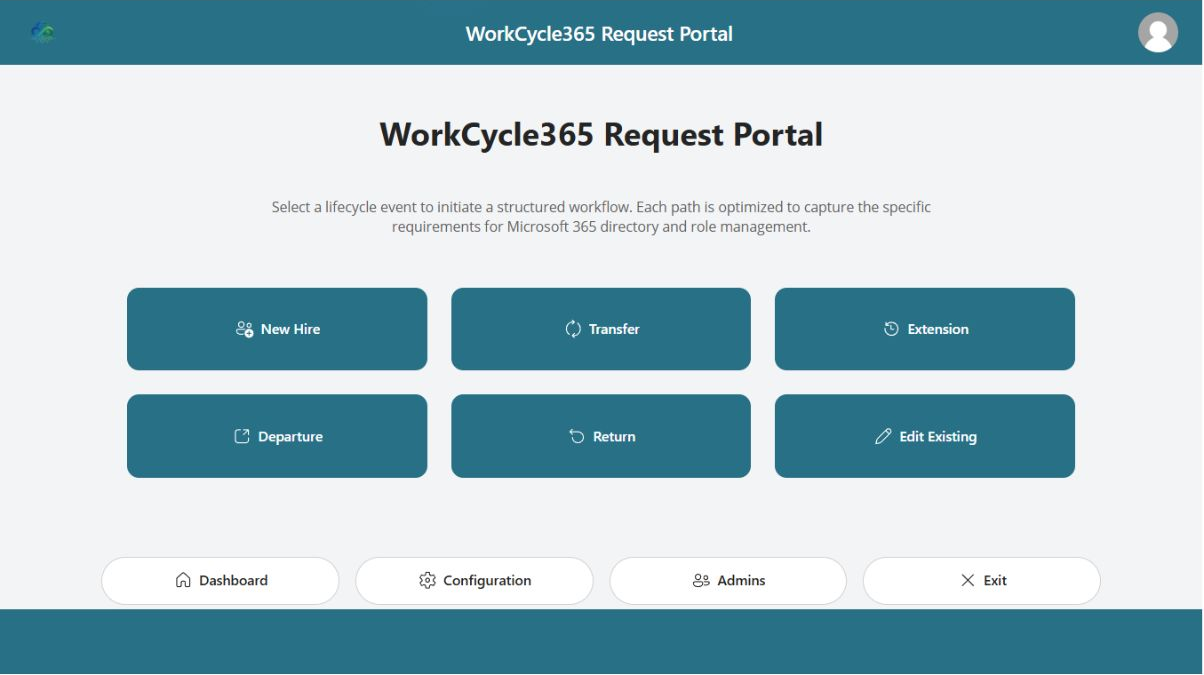
- Choose New Hire, Transfer, Extension, Departure, or Return. For a temporary absence, choose Departure, then select Leave.
- Enter the required person and lifecycle details.
- Complete optional information only when it is known and relevant.
- Review the person, lifecycle, effective date and time, and manager or organizational change.
- Submit once.
- Wait for the portal’s success or error message. A successful submission returns you to the portal home.
The fields change with the lifecycle. Hire collects new-person details. Transfer, Extension, Return, and Departure work with an existing employee; within Departure, choose Leave for a temporary absence.
Complete the fields marked as required for the selected request type. For example, Departure does not require Last Workday for Immediate Access Removal, and the optional Return Date appears only when Leave is selected. For Hire, the organization’s username policy determines whether Middle Name or Employee ID is required.
Other forms have important conditional fields too:
- Transfer: New Role Start, Staff Email, and New Position are required. Transfer Time is optional. If the assignment is temporary, select Temporary Assignment and enter Assignment End; an Assignment End without Temporary Assignment is treated as a future Contract End instead of a return to the prior assignment.
- Extension: Enter Effective Date and Staff Email. WorkCycle365 processes the Extension immediately and requests cancellation of one matching upcoming Departure and its calendar event. Enter New End Date to request a replacement Contract End, or leave it blank for no replacement. Effective Time sets the calendar time and does not delay processing. See the Extension guide for the full procedure.
- Return: Return Date and Staff Email are required. Return Time and Contract End are optional; enter Contract End only when a later end is already agreed and should be scheduled separately.
Use the portal’s inline guidance for the complete field details.
What happens next
Section titled “What happens next”After Request submitted, WorkCycle365 routes the request for its required approval and schedules its lifecycle actions. The confirmation returns you home without displaying a request number. If you need to change a request or see its current status, the available views depend on your role:
- Submitters: Open Edit Existing to see requests you submitted that are currently eligible for changes. This view lists eligible requests for changes; it excludes Extensions and requests outside the Ready, Processing, Scheduled, or Staging states.
- Admins and Reviewers: Open Dashboard and refresh. It shows requests dated from seven days before today to seven days after today.
For help following a request or reporting a problem, see Follow the same request.
These views do not show every request. Requests outside these views continue through their approval and schedule. Do not submit again just because it is not visible.
WorkCycle365 coordinates these actions according to the lifecycle and your organization’s settings:
- route a request for human approval;
- create a scheduled request that waits for an effective time;
- create or update Microsoft Entra ID information;
- coordinate configured group or license-related actions;
- create or update a calendar event;
- send email or post a request card in Microsoft Teams;
- make request history available to authorized administrators.
Read the lifecycle guides for the path you selected.
Follow the same request
Section titled “Follow the same request”A request waits for its required approval and effective time. Allow that stage to complete; you do not need to submit it again. If work is missing after its expected time, a request reports an error, or the result differs from what you requested, contact your administrator.
When asking for help, provide:
- the Request #, if an administrator’s Dashboard shows one;
- the employee name;
- the lifecycle type;
- the approximate submission time;
- the expected effective date and time;
- the status currently shown.
Use your organization’s approved support channel for employee details. See Follow your request for request status guidance.
Change or cancel an existing request
Section titled “Change or cancel an existing request”If you are the submitter or a WorkCycle365 admin, open Edit Existing to work with a request that is still eligible for changes. This is a change screen, not request history. It lists non-Extension requests in Ready, Processing, Scheduled, or Staging status, subject to your role’s request visibility. WorkCycle365 checks eligibility again when you submit the change.
- Select the request and verify its request number, person, and lifecycle type before continuing.
- To correct an eligible request, update only the intended fields and choose Submit Update. A request in Staging is short-notice work being prepared for approval: its fields cannot be edited, although it can be cancelled.
- To stop the selected request, choose Cancel Request. WorkCycle365 queues the cancellation for processing.
- If you need a replacement after cancellation, contact your administrator before submitting it so work already performed can be taken into account. Ask your administrator to remove any outdated calendar event or Teams message. Related Return, Contract End, or return-to-previous-role requests are separate requests and are not changed by updating the selected request.
Extensions use a separate procedure: they do not appear in Edit Existing. Submit another Extension request to change the end-date arrangement; the earlier completed request and its notification remain unchanged. See Extension.
Do not use Edit Existing as a retry for completed, rejected, cancelled, or failed work. For a failed or interrupted request, contact your administrator before trying again. The administrator checks work already performed before arranging recovery.
If something looks wrong
Section titled “If something looks wrong”| What you see | What to do |
|---|---|
| Work is missing after its expected time | Contact your administrator with the details above. Keep the existing request rather than submitting a duplicate. |
| The details are wrong and Edit Existing lists the request | Confirm the request identity and type, then update it only if the portal allows editing. Staging requests can be cancelled but not edited. |
| The work should no longer happen | Use Cancel Request for the selected eligible request. If related work still appears active or you need a replacement, contact your administrator. |
| An approval was rejected | The request will not continue through that approval. If the business decision changes, agree the next step with your administrator before submitting a replacement. |
| The request shows Failed or processing was interrupted | Contact your administrator with the request number if one is available; otherwise provide the employee name, lifecycle, and approximate submission time. Do not use Edit Existing or repeatedly resubmit as a generic retry. |
| You cannot access the portal | Ask an administrator to verify your WorkCycle365 and Microsoft Power Apps access. |
For common questions, see the WorkCycle365 overview.