
Schedule a leave without losing the return path
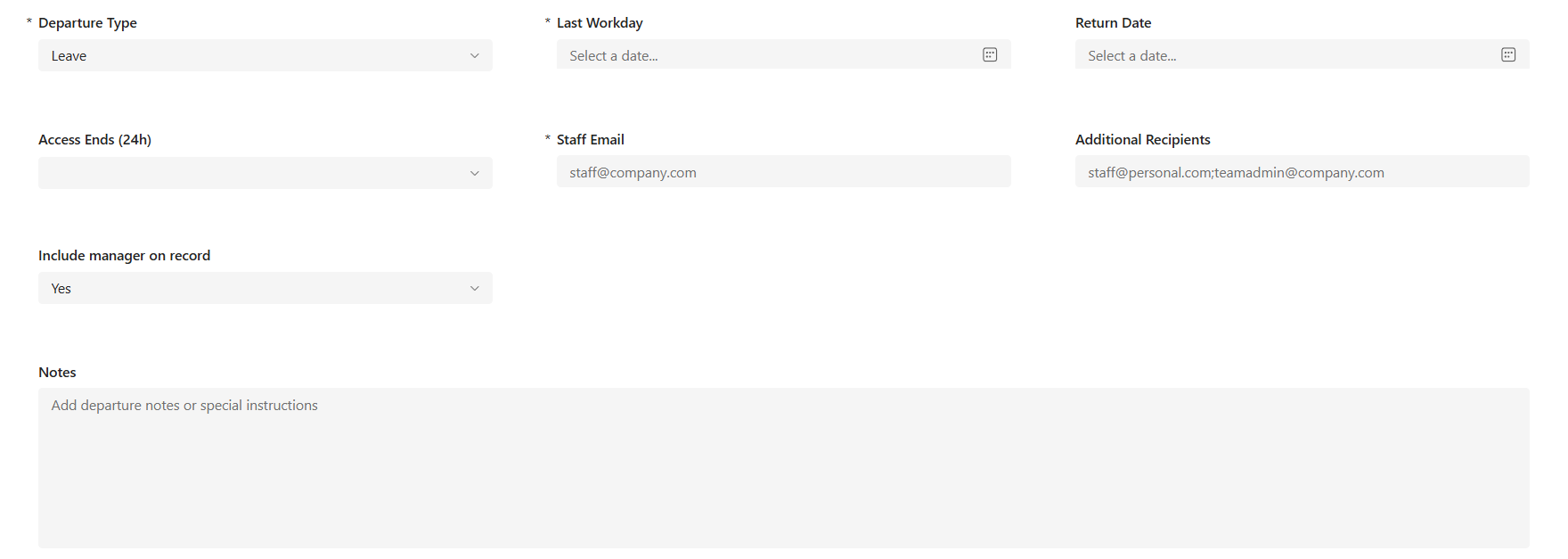
Use Leave for a temporary absence. WorkCycle365 schedules access removal and creates a separate Return when you enter a Return Date.
Before you begin
Section titled “Before you begin”Confirm the existing employee, the last workday shown for the Leave request, the expected return date when known, manager context, and any notes needed for approval. Treat the leave and return times as distinct business decisions; do not assume they share the same time of day.
Submit the Leave
Section titled “Submit the Leave”- From the portal home, choose Departure, then select Leave.
- Identify the existing employee.
- Enter the required Last Workday. Set optional Access Ends (24h) when you want a particular time; leave it blank to use the tenant’s Business End Hour.
- If the return date is known, enter it in the optional Return Date field, which appears for Leave.
- Review the schedule and submit once.
With Access Ends (24h) blank, the Leave calendar start uses Business End Hour in the tenant time zone, or 17:00 when unset. A supplied time takes priority.
If that start has passed or is no more than ten minutes away when the event is created, the event and scheduled access-removal time move to ten minutes after creation. For example, a Leave for today using the 17:00 default has an 18:10 start if its event is created at 18:00. Access removal requires approval before it proceeds at the scheduled time.
See timing and scheduling for the shared defaults and near-term adjustments.
What happens next
Section titled “What happens next”- WorkCycle365 prepares the Leave request and event. Review the Leave approval when it is issued, before the scheduled access removal.
- After approval, WorkCycle365 waits until the stored Leave start before disabling the Microsoft Entra ID account.
- It removes the employee from the primary license group and adds them to the disabled-users group when those groups are configured. Your tenant’s group-based licensing policy applies the resulting license changes.
- The applicable Leave card, email and calendar communications follow the request and your organization’s settings.
Report a failed Leave to your administrator. Keep the existing request while they check access and licence changes.
Relationship to Return
Section titled “Relationship to Return”An optional Return Date creates a separate Return request and event. Review the Return’s separate approval before the planned return. Approving Leave does not approve re-enablement.
The generated Return starts 90 minutes before Business Start Hour on the return date (07:30 when Business Start Hour is 09:00). Its event duration follows the tenant setting, with 90 minutes used when unset. A supplied Return time takes priority. If you submit the Return separately, use the Return guide.
If the return plan changes, use the supported change path for the relevant request. Do not submit an extra Return merely to compensate for an uncorrected Leave.
If the Leave needs attention
Section titled “If the Leave needs attention”Use Modify or Cancel while the Leave is eligible if it should change or no longer go ahead. Changes already made are not automatically undone.
Contact your administrator if an error appears, approval is missing when expected, or access or Leave/Return communications are wrong after the expected time. Include the employee, intended Leave and Return dates, visible status and request number if available. If a linked Return is affected, mention it too.
Do not submit a second Leave to prompt an approval or repeat a failed request. Your administrator checks completed actions before arranging recovery from a failed or interrupted request.
Related: Timing and scheduling · Return · Requester quickstart