
Restore an employee at the approved return time
Use Return to restore an employee’s account access after leave. WorkCycle365 coordinates approval, scheduled account changes and Return communications.
Before you begin
Section titled “Before you begin”Confirm:
- the employee and related leave context;
- the employee’s current company email address/UPN;
- the required return date and any specific return time;
- any contract end date that remains relevant;
- the business context the approver needs.
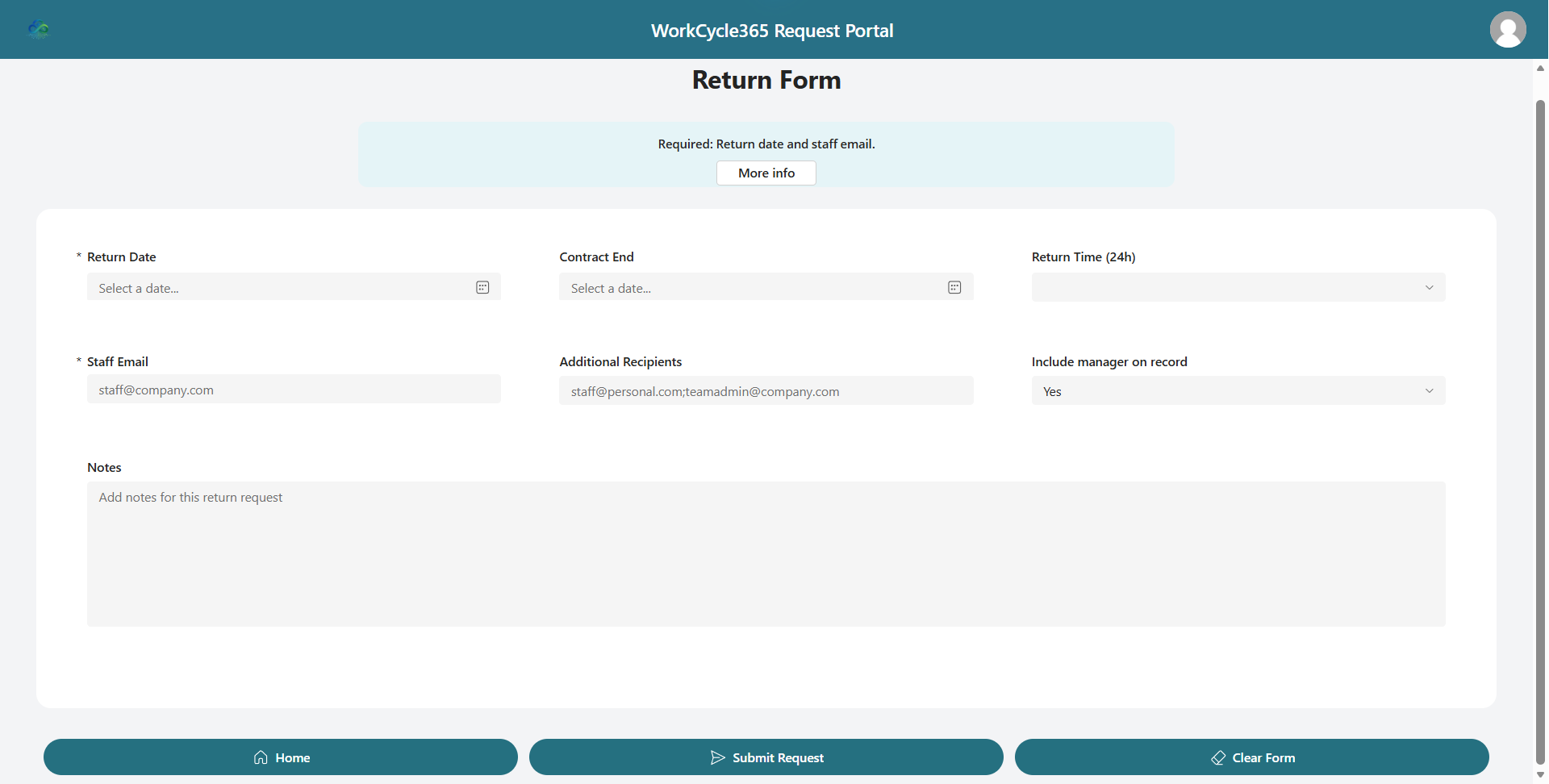
Choose the Return time for the employee’s return, independently of the original Leave time. Return Date and Staff Email are required. Return Time (24h) is optional: select a particular time, or leave it blank to use 90 minutes before Business Start Hour in the tenant time zone. With Business Start Hour 09:00 (the fallback when unset), the default calendar start is 07:30. A supplied time takes priority.
If the planned start has passed or is no more than ten minutes away when the event is built, the event start moves to ten minutes after the current time. For example, a Return for today with the time blank and an event built at 11:00 starts at 11:10, rather than the already-passed 07:30. The adjustment is calculated when the event is created. Account re-enablement also requires approval. See timing and scheduling.
Submit the Return
Section titled “Submit the Return”- Choose Return in the request portal.
- Enter the employee’s current company email address/UPN and the required Return Date.
- Optionally choose Return Time (24h).
- Review the manager and other employee details. Enter Contract End only when a later end date is agreed; it schedules a separate future Departure with its own approval.
- Submit once. Keep the request number if it is available in your view; otherwise note the employee and submission time.
What happens next
Section titled “What happens next”- WorkCycle365 prepares the Return request and calendar event. Teams communications depend on your organization’s settings.
- The Return has its own approval, including when it was generated from a Leave. Review the Return approval before its scheduled date. Approval of Leave does not approve Return.
- After approval, WorkCycle365 waits until the stored Return time. WorkCycle365 checks for cancellation, rejection, failure and request changes before updating the account.
- If the account is disabled, WorkCycle365 enables it and removes it from the configured disabled-users group when it is a member. If the account was already enabled, this path does not remove it from that group.
- When configured, WorkCycle365 adds the employee to the primary license group if needed, then allows five minutes for a new membership to take effect. Your organization’s group-based licensing policy provides the associated services.
- WorkCycle365 checks for request changes again, then sends the configured Return email and updates the request and Teams card. The email follows the account update.
If WorkCycle365 cannot find the employee account or related request, it records a failure and sends an administrator alert.
If the Return needs attention
Section titled “If the Return needs attention”Contact your administrator if a request error appears, an expected approval is missing, or access or Return communications are missing after the expected time. Include the employee, Return date and time, visible status and request number if available. Mention whether the Return came from a Leave.
If an already-enabled employee still has an access restriction, include that restriction when contacting your administrator.
Do not submit a second Return merely because approval or an event is not immediately visible. For a failed or interrupted Return, ask your administrator to check account and group changes before arranging recovery.
Related: Timing and scheduling · Leave · Approvals and notifications