
Prepare a new hire before the start date
Use New Hire to prepare an employee’s account and start arrangements. WorkCycle365 coordinates two approvals, configured access, welcome communications, and calendar events around the start date.
Who this guide is for
Section titled “Who this guide is for”- Requesters entering a new-hire request
- Approvers reviewing the proposed identity or start activation
- HR administrators arranging the employee’s start
Before you begin
Section titled “Before you begin”Confirm the new hire’s name, employee identifier, start date, manager information, organizational details, and any contract end date that applies.
Requested Email is optional. Enter it when your organization intends to request a specific sign-in address; otherwise, leave it blank and WorkCycle365 proposes the first available address from your organization’s username pattern and domain. The first approval presents the proposed identity.
Generated addresses use lowercase names with accents, spaces and unsupported characters removed.
If a generated address is already taken, WorkCycle365 tries the next candidate allowed by your organization’s pattern.
The default pattern (lastf) starts with the surname and the first letter of the first name. For Maya Sullivan, it tries sullivanm, sullivanma, sullivanmay, then sullivanmaya, each followed by the configured domain. It stops at the first available address.
Other patterns work differently. The full-name pattern (first.last) tries maya.sullivan once. Some patterns use middle initials, Employee ID, or number suffixes.
The search has a limited set of candidates. If none is available, account preparation stops; contact your administrator before trying again. When you supply Requested Email, WorkCycle365 checks that exact address instead of generating alternatives.
Identity accuracy: The first approval authorizes preparation of the sign-in identity used by the later steps. Review the person’s name, requested or generated sign-in identity, and manager carefully before approving.
Submit the Hire
Section titled “Submit the Hire”- From the portal home, choose New Hire.
- Enter the required person and start details.
- Add the manager, organization, and contract information available for the hire.
- Review the effective start date. Set Start Time (24h) only when you want a particular time; otherwise leave it blank to use Business Start Hour.
- Submit once. On a successful portal action, the form displays Request submitted. and returns to the portal home.
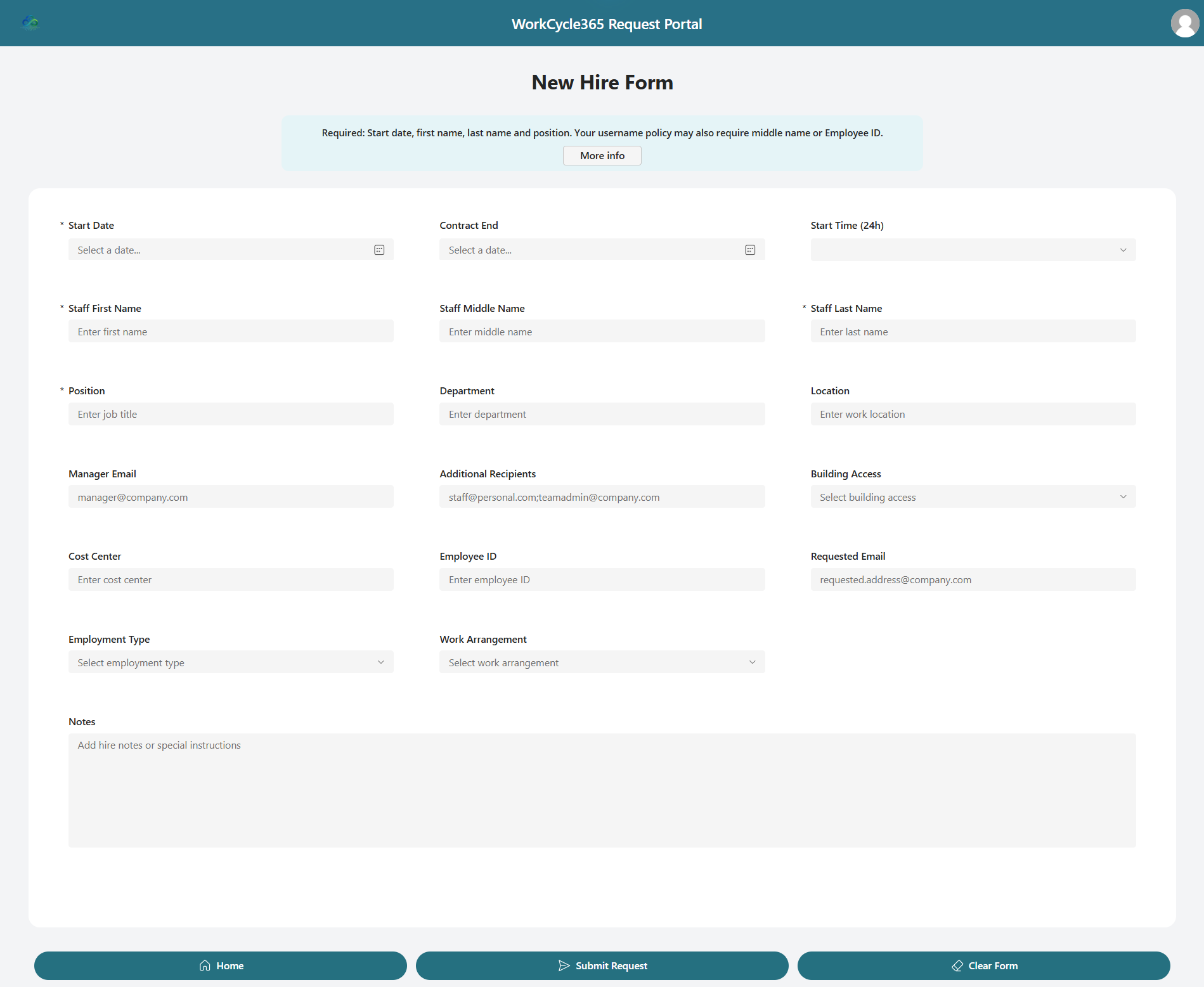
When Start Time (24h) is blank, the Hire calendar start uses the tenant’s Business Start Hour, or 09:00 if unset. A supplied time takes priority. If that start has passed or is no more than ten minutes away when the event is built, its calendar start moves to ten minutes after the current time. For a Hire submitted today at 11:00 with the time blank and Business Start Hour 09:00, an event built at 11:00 starts at 11:10. The adjustment is calculated when the event is created. Account activation also requires its separate approval. See timing and scheduling.
The success message acknowledges submission; approval and account preparation happen separately. If you need to change the request, Edit Existing shows your eligible requests still in progress. Admins and Reviewers can use Dashboard, which shows dated requests within seven days before or after today. Requests outside those views continue through their approval and schedule. Keep the existing Hire rather than submitting it again.
What happens next
Section titled “What happens next”Hire has two approval stages:
- WorkCycle365 checks the requested or generated sign-in identity and asks for the first approval, covering the username or account-preparation decision.
- After approval, it checks the identity again and prepares the account. An existing account found at this stage is eligible for reuse; verify that it belongs to the intended employee.
- With StartEnabled off (the default), a new account is created disabled. With StartEnabled on, it is created enabled. The later activation approval is required in both cases.
- WorkCycle365 prepares the start event and, if an End Date was supplied, a separate Contract End follow-up.
- A later Activate New Hire approval authorizes account activation. For scheduled work, preparation waits until 90 minutes before the saved start time. WorkCycle365 checks for changes or cancellation before continuing.
- The approved start process enables the account as needed and adds it to the primary access group when configured. Microsoft 365 licensing and service readiness determine when the employee has access.
- Applicable welcome email, Microsoft Teams card, and calendar communications follow the selected Hire path and tenant settings. Welcome email follows enablement and the account-readiness check.
Contract End follow-up: A supplied End Date creates a separate scheduled Departure request of type Contract End, initially awaiting its own approval. Its calendar event is separate from the Hire start event; a Teams card is also created when enabled. The Hire’s Activate New Hire approval does not approve this later departure. If End Date is blank, no automatic Contract End follow-up is scheduled. If the contract end is unknown, agree with HR how it will be arranged when known. If an expected follow-up is missing or wrong, contact your administrator before submitting another Departure.
After account preparation: The Hire still needs its Activate New Hire approval before the start steps can continue.
Approval outcomes
Section titled “Approval outcomes”- If the first approval is rejected, Hire does not continue to account creation or the later activation approval.
- If the activation approval is rejected, WorkCycle365 stops the start steps covered by that approval. It does not proceed with enabling the account or adding it to the primary access group. Rejection does not disable an account enabled through StartEnabled or earlier work.
- An approved future-dated request waits for its configured effective time.
See approvals and notifications for the decision checklist.
If a sign-in identity is already in use: A supplied Requested Email found in use at the initial check does not proceed to the first approval. Availability checks do not reserve a name. The later account check supports reuse of an existing account. Verify the account belongs to the intended employee. If an address is unavailable or the account belongs to someone else, contact your administrator before retrying.
Your organization’s settings
Section titled “Your organization’s settings”The username pattern, initial account state, primary access group, email templates, Teams and calendar destinations, and recipients depend on your organization’s configuration. Microsoft 365 licenses, policies, and service readiness also affect access and communications. If access or a welcome message is missing after the expected start, use the help below.
When Include manager in events is enabled, the manager resolved from the request receives applicable calendar updates or check-ins and is copied on applicable end-user lifecycle email. This setting does not select the approver.
If the Hire needs attention
Section titled “If the Hire needs attention”Contact your administrator if an error appears, an approval is missing when expected, the account details are wrong, or access or welcome communications are missing after the expected start. Provide the employee name, submission time, intended start, visible status, and request number if available.
Do not create a second Hire merely because a stage is pending. For a failed or interrupted request, an administrator checks the account preparation already performed before arranging recovery or a replacement. A clear rejection stops that approval path; if the business decision changes, agree the next step before submitting again.
Related: Timing and scheduling · Follow your request · Departure and Immediate Access Removal